
If you are a new user or do not currently have MFA enabled, follow these steps to reset your password. Before proceeding, you will need to know your MUSC NetID, temporary password and have a device to install MFA. Note that you will be required to set up MFA during this process as part of MUSC’s enhanced security process.
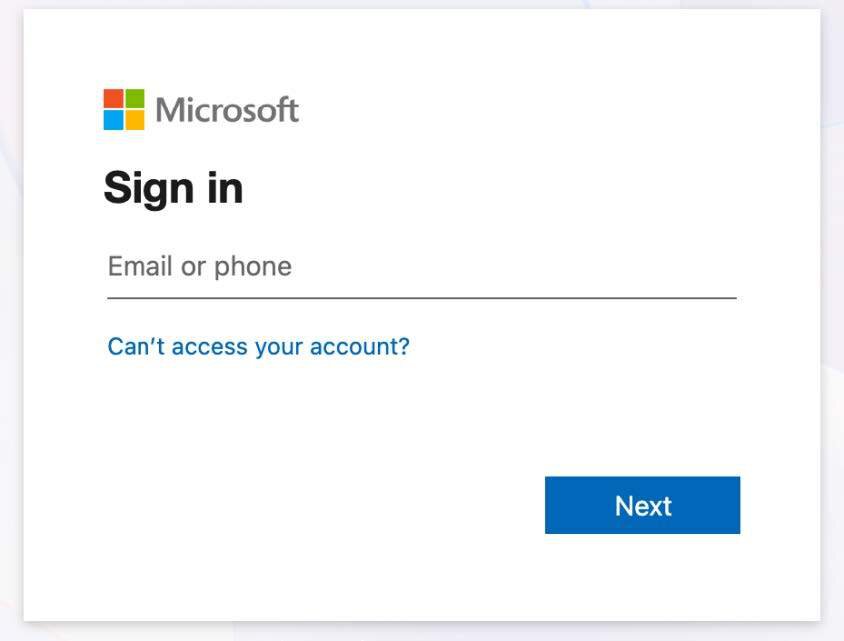
Microsoft login screen
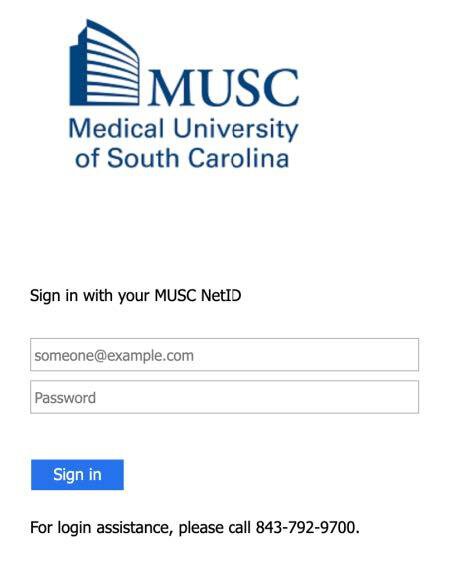
Password login screen
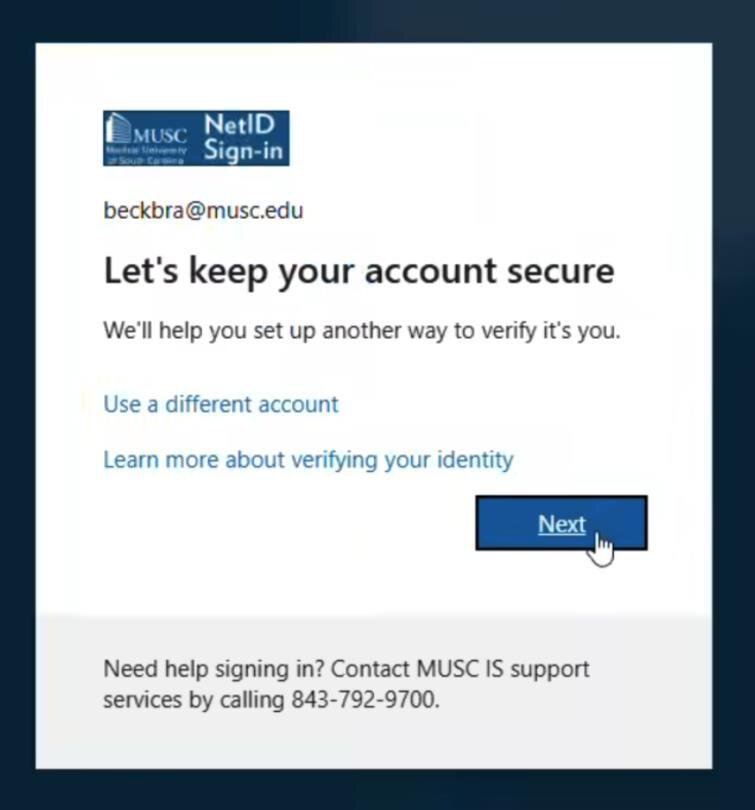
Window with Next button
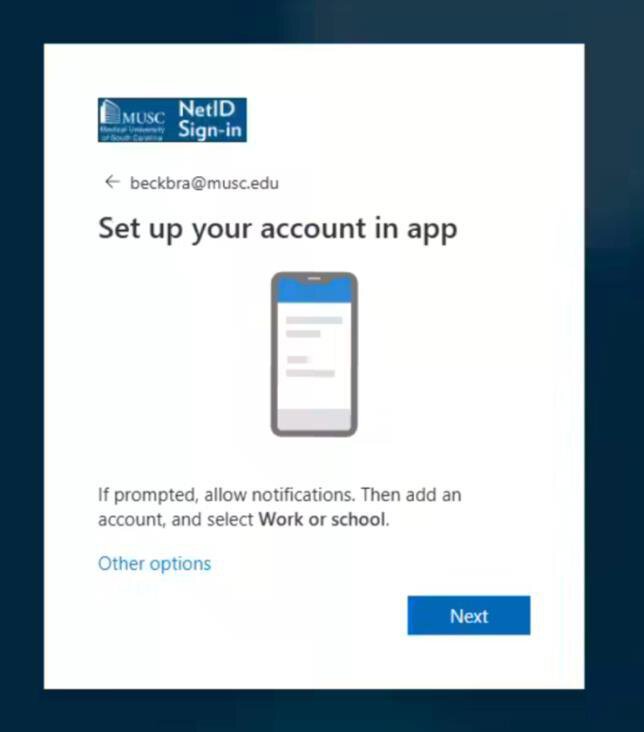
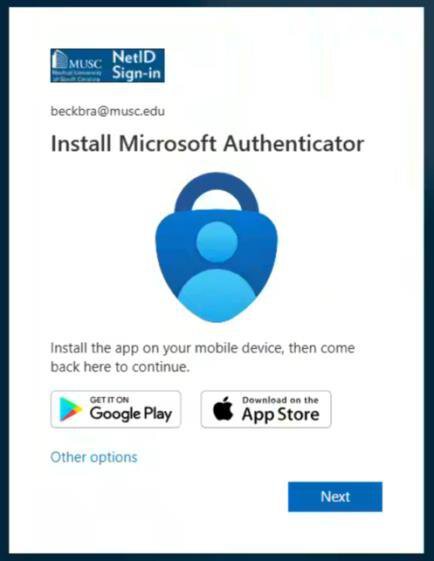
Microsoft authenticator app download with Next button
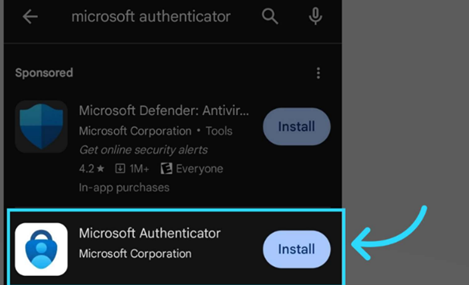
Microsoft authenticator download with install button
Screen with Allow button
Microsoft authenticator download with next button
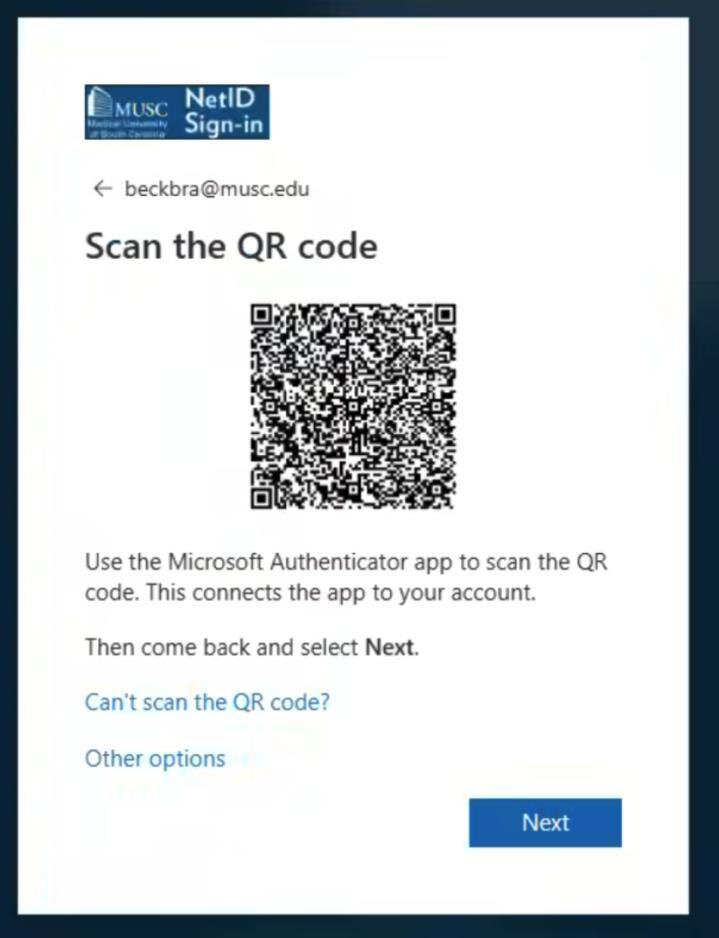
Microsoft authenticator QR code
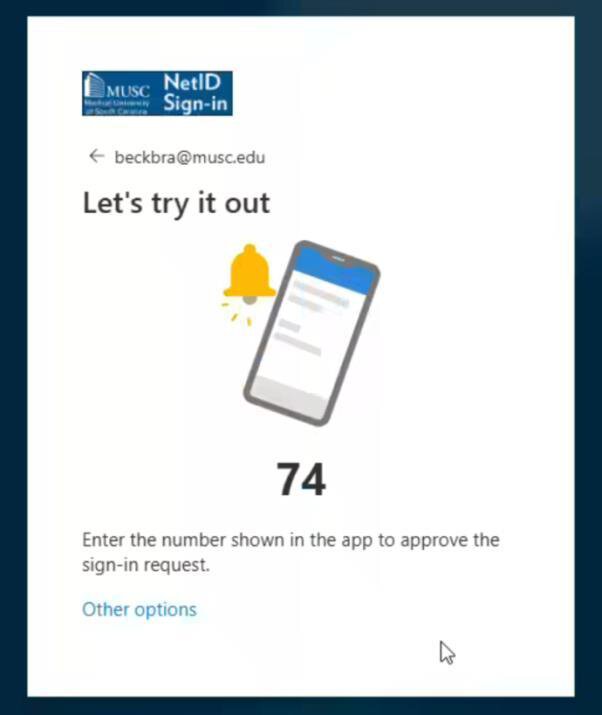
Microsoft Authenticator number screen
Microsoft Authenticator approved screen with next button
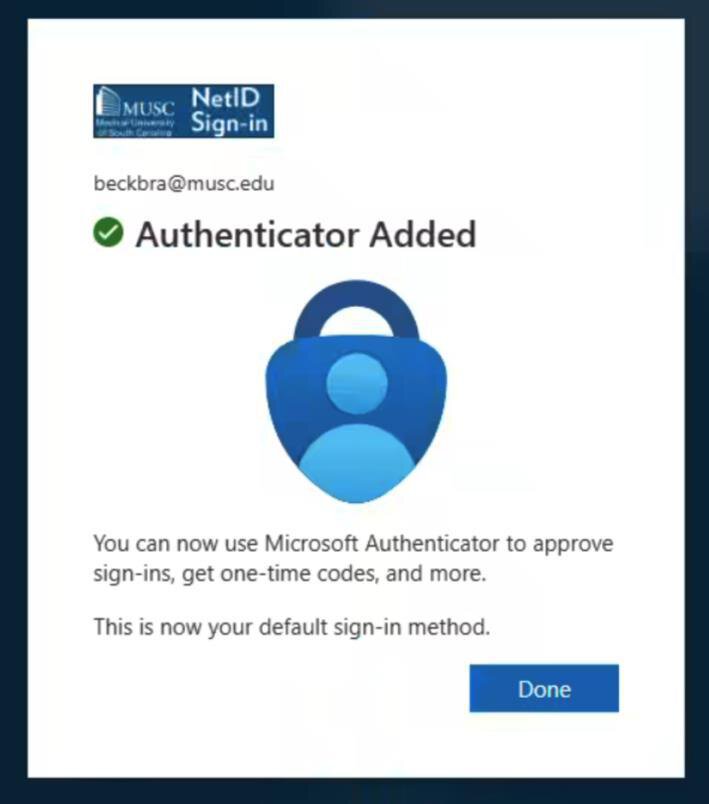
Final authenticator screen with Done button
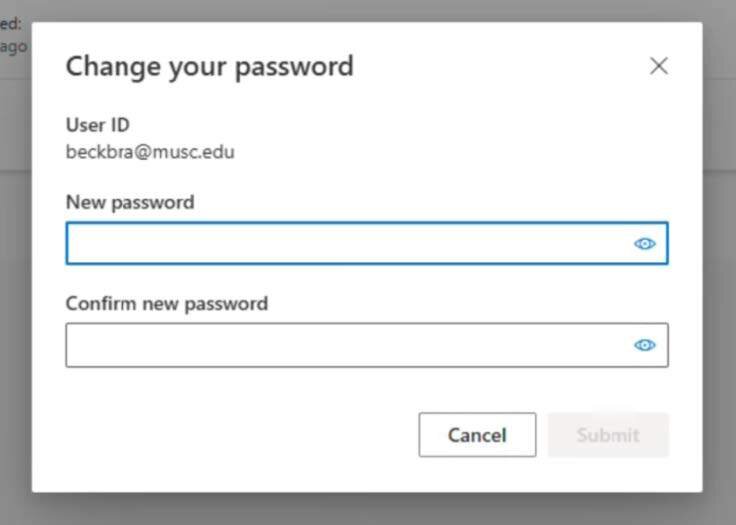
Log in screen with current and new passwords
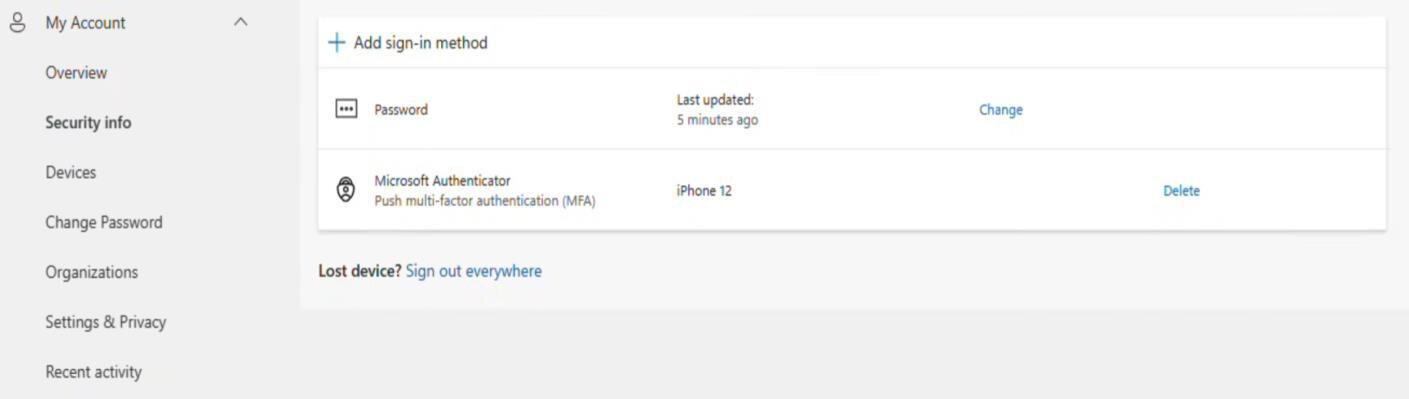
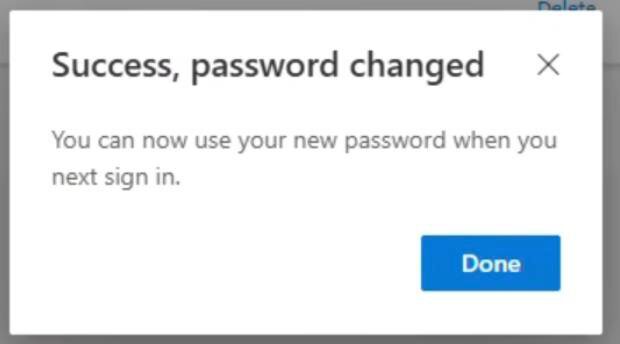
Security info screen confirming password reset