
Password Reset Instructions – Users with Multifactor Authentication (MFA) Enabled

If you have MFA enabled for your NetID, follow these steps to reset your password.

  1. Go to https://mysignins.microsoft.com/security-info
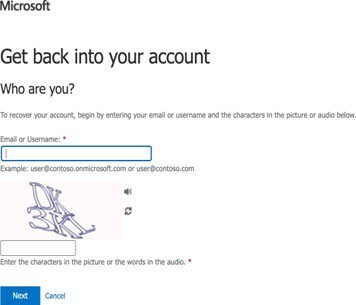
  2. Enter your NetID in the Email or Username field in the format NetID@musc.edu.
  3. Enter the characters in the picture or the words in the audio.
  4. Click Next.

    screen shot to get back into your account

    Login screen with email or username and authenticator

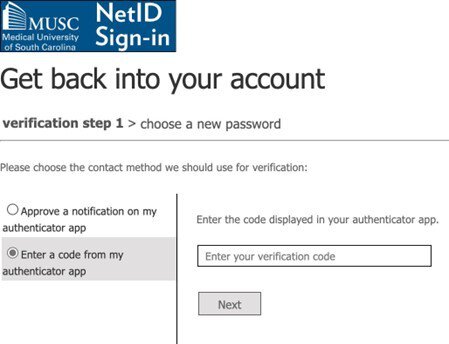
  5. You can choose to either:
    1. Receive a notification on your mobile device’s authenticator app
    2. Enter the code displayed in your authenticator app for your NetID

      screen capture to get back into your account

      NetID sign in with verification code

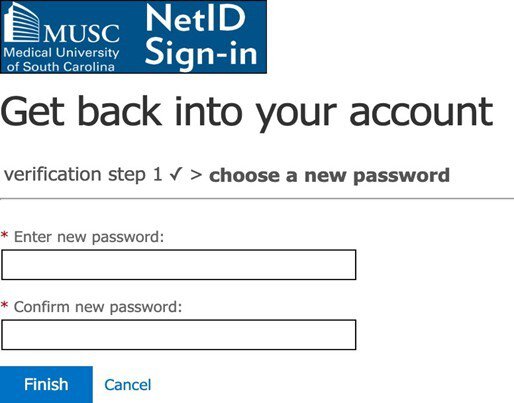
  6. Create and enter a new password, then click Finish. Your new password must follow these guidelines:
    1. Be a minimum of 12 characters long
    2. Be a minimum of 16 characters long for admin accounts
    3. Contain at least 3 of the following:
      1. A number
      2. An uppercase character
      3. A lowercase character
      4. A special character


        New password creation


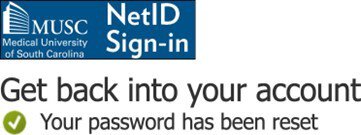
  7. You have successfully reset your password

    screen capture showing password has been reset

    Success message