
Password Reset Instructions for new user accounts or accounts with no MFA

If you are a new user or do not currently have MFA enabled, follow these steps to reset your password. Before proceeding, you will need to know your MUSC NetID, temporary password and have a device to install MFA. Note that you will be required to set up MFA during this process as part of MUSC’s enhanced security process.

  1. Go to aka.ms/ssprsetup
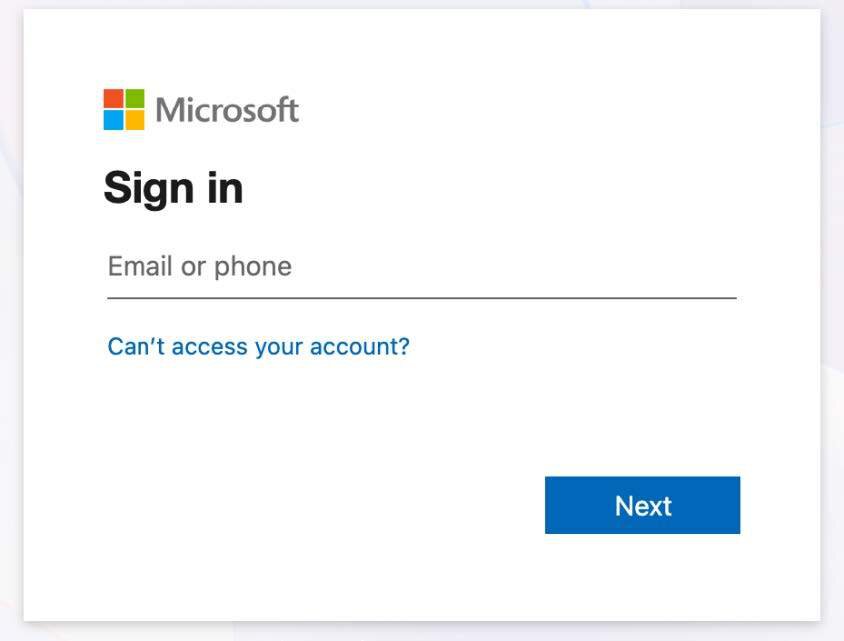
  2. Type in your NetID in the following format: NetID@musc.edu


    Microsoft login screen

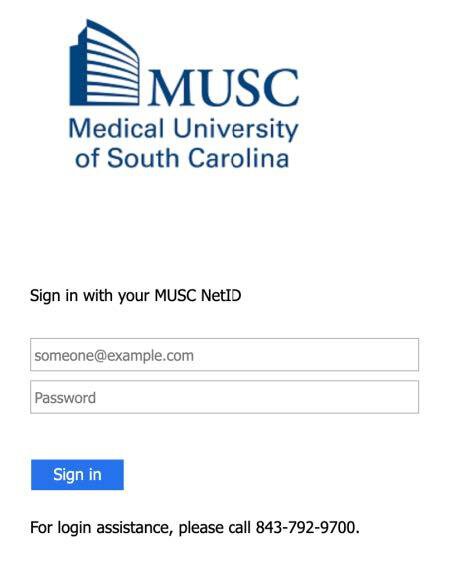
  3. Enter the temporary password from the email you received and click Sign in. If you do not have the temporary password, please call the IS support at 843-792-9700.


    Password login screen

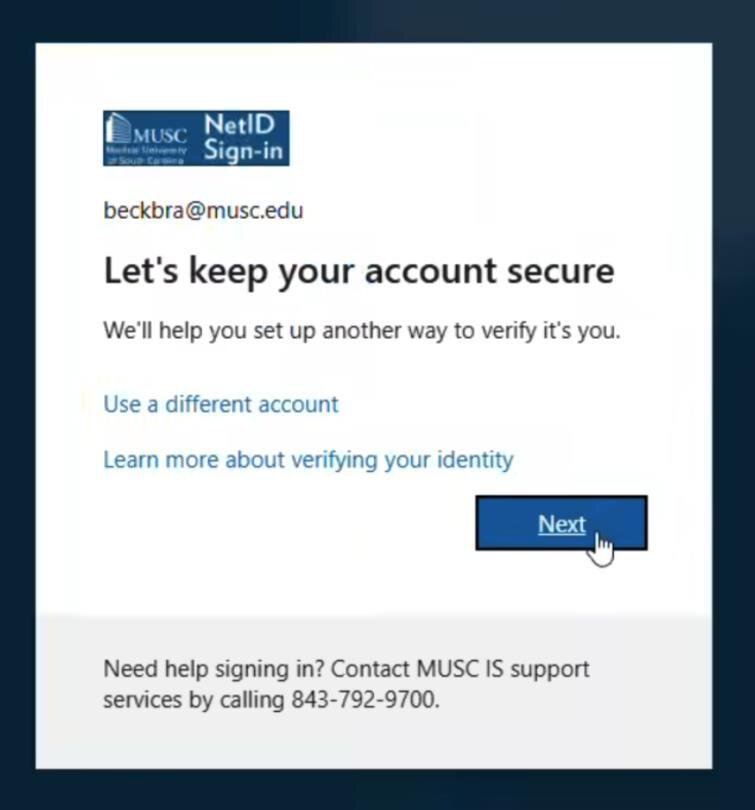
  4. Click Next.


    Window with Next button

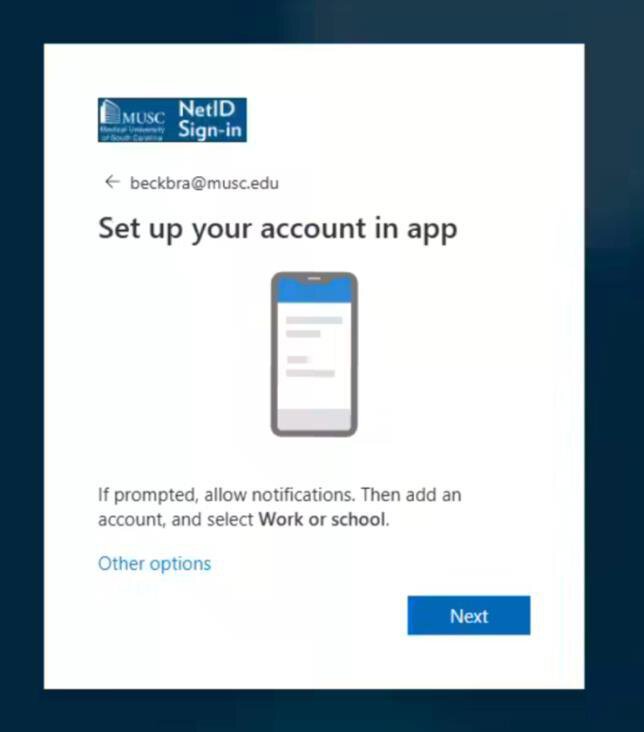
  5. Click Next.


    Window with Next button

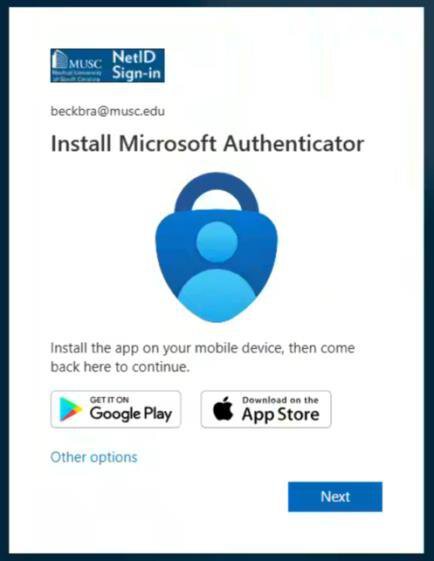
  6. You will be prompted to download the Microsoft Authenticator app on your mobile device. After doing so, click Next.


    Microsoft authenticator app download with Next button

  7. Download Microsoft Authenticator app on your device:

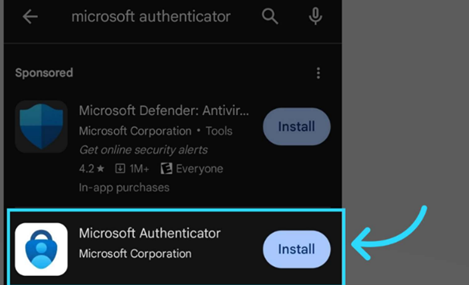
    On your phone, search for the Microsoft Authenticator App in your Google Play or App Store. Be sure to choose the application titled "Microsoft Authenticator" by the Microsoft Corporation. Once you have selected the correct application, install it on your phone.

    screen capture to install Authenticator

    Microsoft authenticator download with install button

  8. Open the Microsoft Authenticator app on your mobile device and tap the + button in the top right corner.
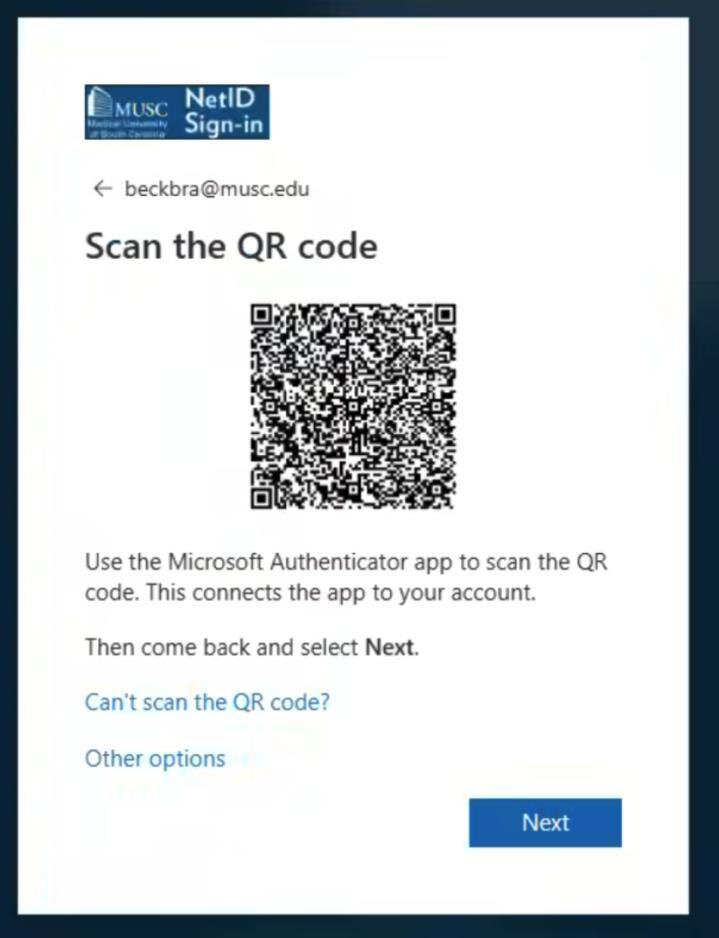
  9. Tap Work or school account and choose Scan QR code on your device. Then, scan the QR code on your computer screen:


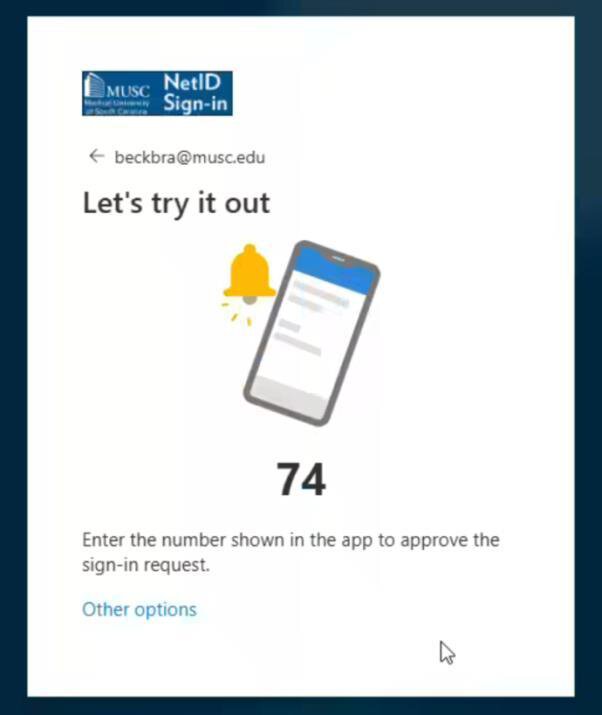
  10. Your mobile device will prompt you to enter the number shown on your computer screen:


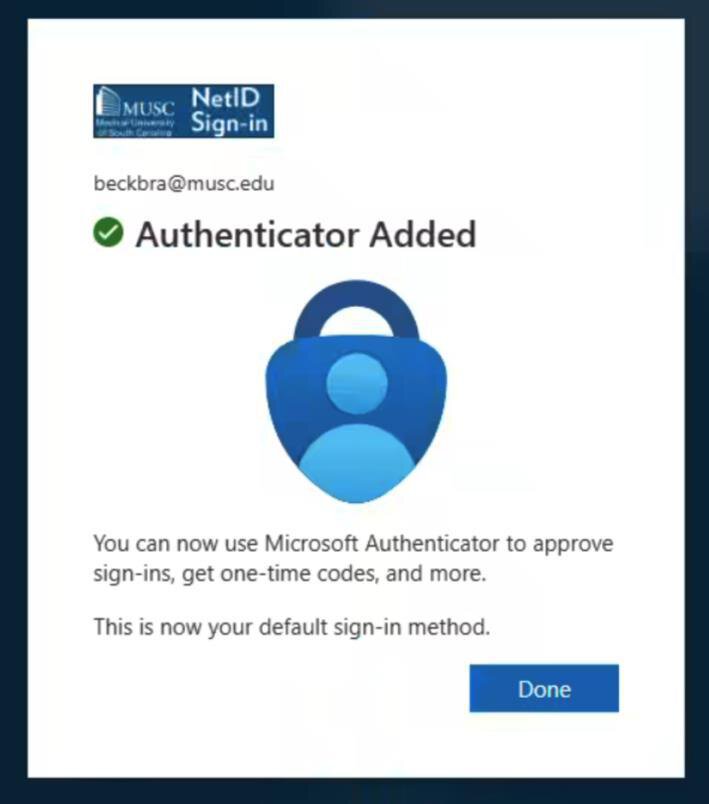
  11. Once you enter the code on the authenticator app, you have finished setting up multifactor authentication. Click Done.


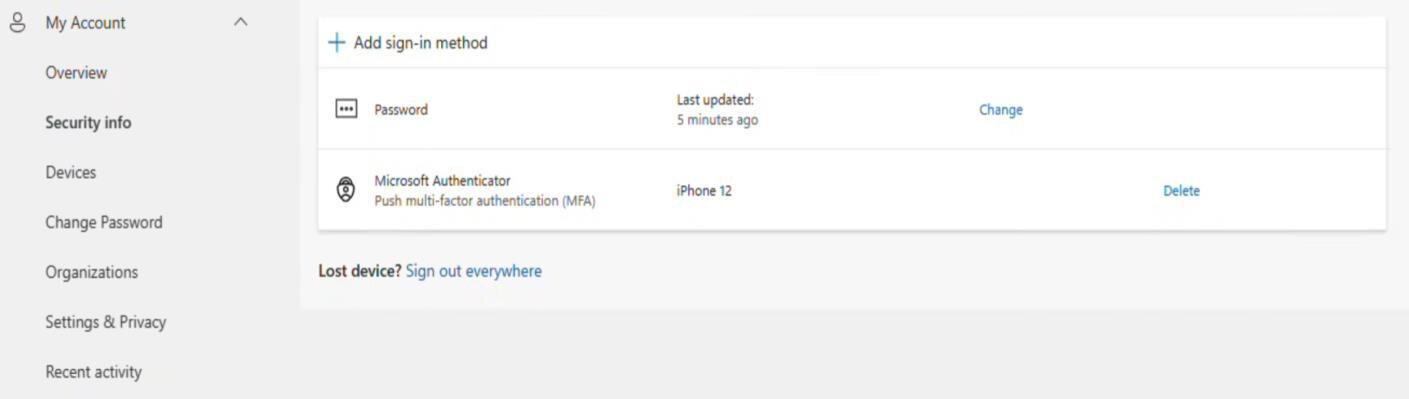
  12. You will be brought to the following page. Click Change Password on the left side:


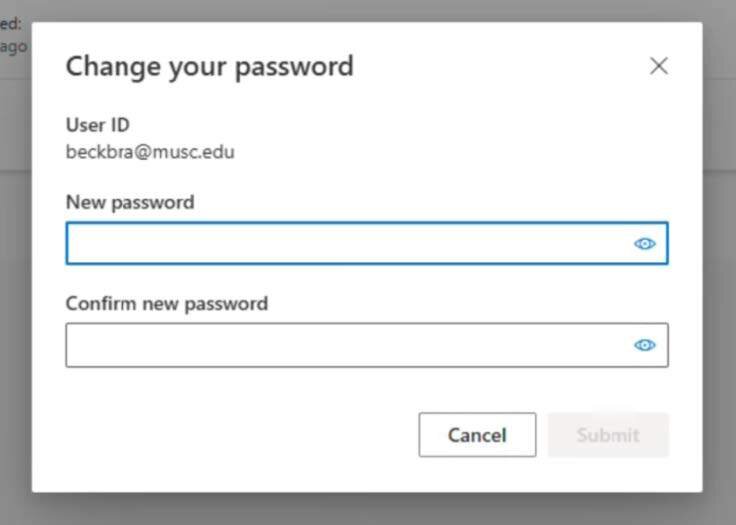
  13. Enter a new password, then click Submit. The password must:
    1. Be a minimum of 12 characters long
    2. Be a minimum of 16 characters long for admin accounts
    3. Contain at least 3 of the following:
      1. A number
      2. An upper-case character
      3. A lower-case character
      4. A special character.


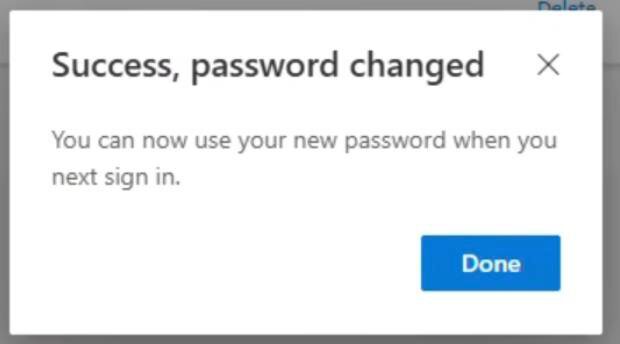
  14. You will receive this message once your password has been successfully changed: